Marketing
Campaigns
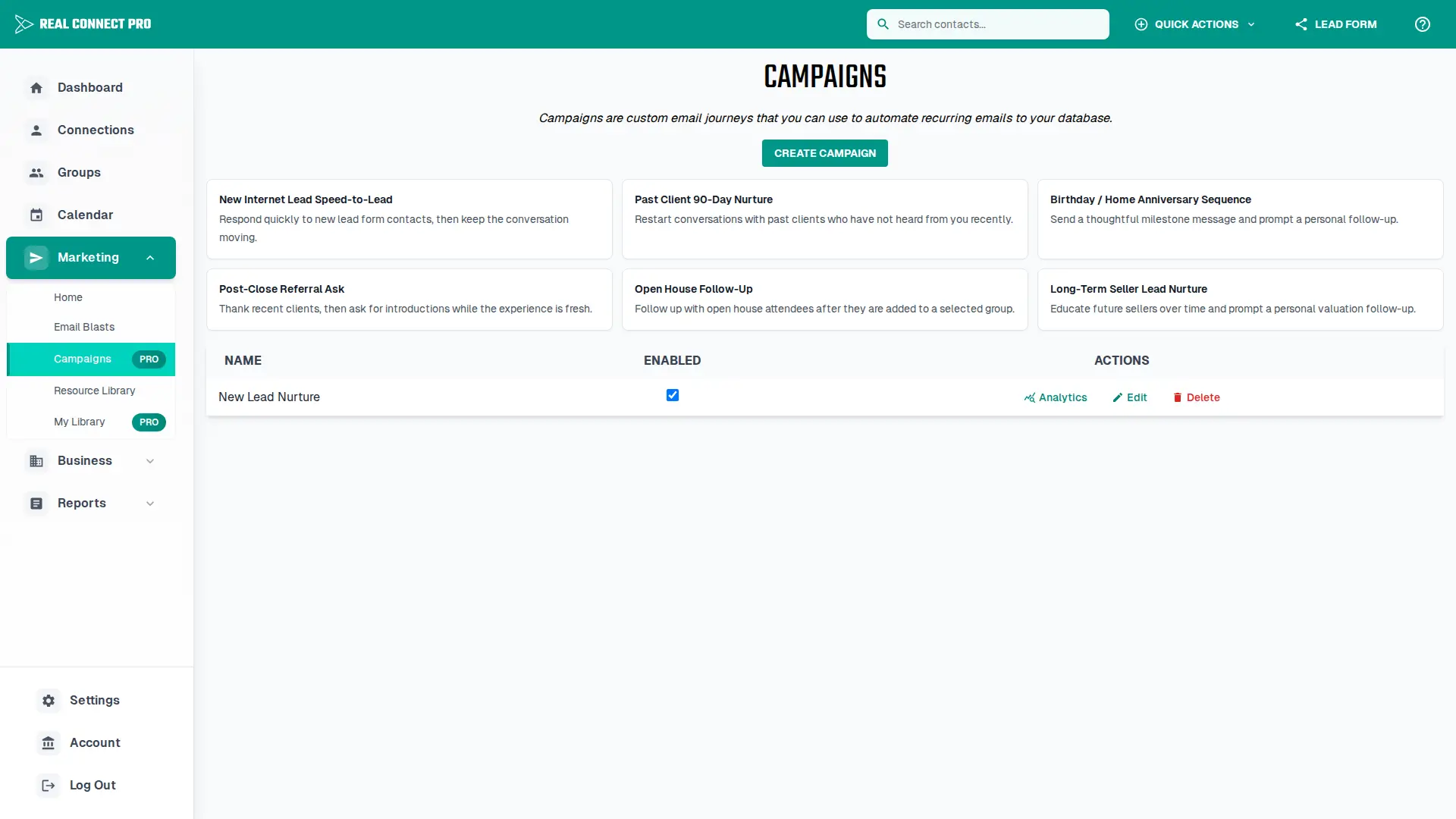
Create and manage automated email journeys for your connections. Campaigns allow you to set up multi-step communication sequences that automatically engage with your database based on specific triggers.
Overview
Campaigns are powerful automation tools that help you maintain consistent communication with your connections. You can create custom journeys that send emails, create follow-up tasks, update group membership, log notes, notify your team, and stop or restart sequences based on specific triggers.
Key Benefits:
Key Features
Trigger System
Start campaigns based on specific events
Step Builder
Create multi-step email sequences
Time Delays
Add delays between campaign steps
Restart Option
Loop contacts through campaigns
How to Create a Campaign
Click "Create Campaign" from the Campaigns page
Enter a name for your campaign
Select a trigger for when the campaign should start
Add steps to your campaign, such as emails, waits, todos, group changes, notes, notifications, stops, or restarts
Configure each step's settings and content
Save your campaign and enable it to start sending
Campaign Triggers
New Contact
Starts when a new contact is created.
New Lead Form Contact
Starts when a new contact is created from your lead form.
Contact Added to Group
Starts when a contact is added to a selected group.
Transaction Closed
Starts when a transaction is marked closed for a contact.
Email Link Clicked
Starts when a contact clicks a tracked link in an email.
Birthday
Starts on a contact birthday.
House Anniversary
Starts on a contact house anniversary.
No Contact Activity
Starts when a contact has no activity for the number of days you configure.
Campaign Steps
Send Email
Send personalized emails using the rich text editor.
Wait
Add delays between actions using days, weeks, or months.
Create Todo
Create a follow-up task for the contact.
Add Contact To Group
Add the contact to a selected static group.
Remove Contact From Group
Remove the contact from a selected static group.
Send Internal Notification
Send an internal email notification, an in-app notification, or both.
Log Contact Note
Add a note to the contact history.
Stop Campaign
End the current campaign path for the contact.
Restart
Send the contact back to the beginning of the campaign.
Tips for Effective Campaigns
Start with a welcome email
Use appropriate delays between steps
Test campaigns before enabling
Monitor campaign performance
Need Help?
If you need assistance with creating or managing campaigns, or have questions about automation best practices, please contact our support team.