Business
Partner Directory
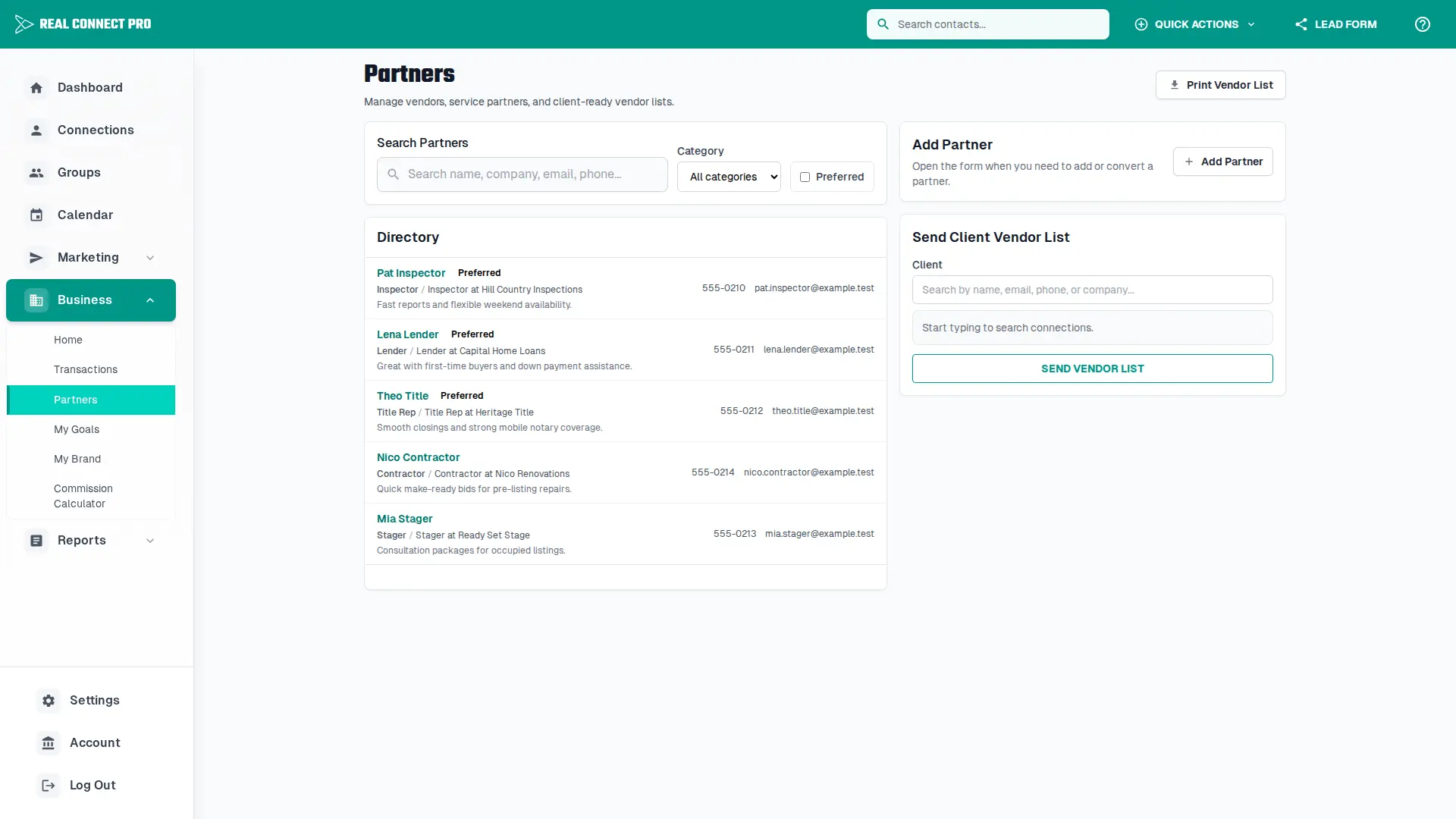
Keep your trusted vendors and service partners organized in one place. Track who you prefer to recommend, which services they provide, where they fit into transactions, and which partners belong on client-ready vendor lists.
Overview
Partners are stored as connections with a partner contact type. This keeps your vendor relationships inside your CRM while adding business-specific fields for service category, preferred vendor status, and internal service notes.
Use the directory to track:
Adding Partners
Create a partner from the directory:
- Open Business, then select Partners.
- Click "Add Partner".
- Enter the partner's name, company, phone number, email address, and location details.
- Choose the service category that best describes the partner.
- Turn on the preferred vendor flag when this is someone you regularly recommend.
- Add notes for pricing, service area, communication preferences, or important client feedback.
Mark an existing connection as a partner:
- Use the existing connection search inside Add Partner.
- Select the connection you want to convert into a partner.
- Choose a service category and add partner notes.
- Save the connection to include it in the Partner Directory without duplicating the contact.
Managing the Directory
Find the right partner quickly:
- Search by partner name, company, email address, phone number, or notes.
- Filter by service category when you need a specific vendor type.
- Filter to preferred vendors when preparing a client recommendation list.
- Sort or review recently updated partners to keep details current.
Maintain useful partner notes:
- Record what the partner does well and which clients they fit best.
- Keep service areas, licensing details, fee notes, and availability reminders current.
- Document issues or client feedback so the next recommendation is informed.
- Review preferred vendors regularly to make sure your recommendations stay accurate.
Transactions and Vendor Lists
Attach partners to transactions:
- Open a transaction and edit the linked contacts section.
- Search for the partner you want to attach.
- Add the partner to the transaction as a transaction partner.
- Use the linked partner list as a record of the service team involved in the deal.
Send a client vendor list:
- Search for the client connection who should receive the list.
- Click "Send Vendor List".
- The email automatically includes the same preferred partners used by the PDF.
- Share the generated vendor list link with the client.
Print your preferred vendor list:
- Click "Print Vendor List" from the Partners page header.
- The PDF automatically includes every partner marked as preferred.
- No client or vendor selection is required before downloading the PDF.
Best Practice
Keep the Partner Directory focused on people you would actually introduce to clients. A smaller, well-maintained list of reliable partners is more useful than a large vendor list that is never reviewed.